> For the complete documentation index, see [llms.txt](https://docs-fr.docbits.com/llms.txt). Markdown versions of documentation pages are available by appending `.md` to page URLs; this page is available as [Markdown](https://docs-fr.docbits.com/administration-and-setup/settings/document-processing/classification-and-extraction/table-extraction-for-costing-element.md).
# Extraction de tableaux pour le calcul des coûts
### **What Does It Do?**
When enabled, **DocBits** can extract **costing elements** from tables at the **line level** and classify them accordingly.
* If the system does not classify an item or classifies it incorrectly, an **icon** appears on the left side.
* Clicking this icon opens a list of all **configured costing elements**, allowing you to:
* **Change the classification** if it is incorrect.
* **Set the item to "Uncategorized"** if it is a regular item and not a costing element.
### **How to Configure Costing Elements**
You can find the **guide on setting up costing elements** in **DocBits** here.
{% content-ref url="/pages/eYE2Ld1G6jwYVcoJVwTs" %}
[Extraction de tableaux pour le calcul des coûts](/infor-integration-and-configuration/importing-customer-master-data/m3/table-extraction-for-costing-element.md)
{% endcontent-ref %}
### **Where to Enable It**
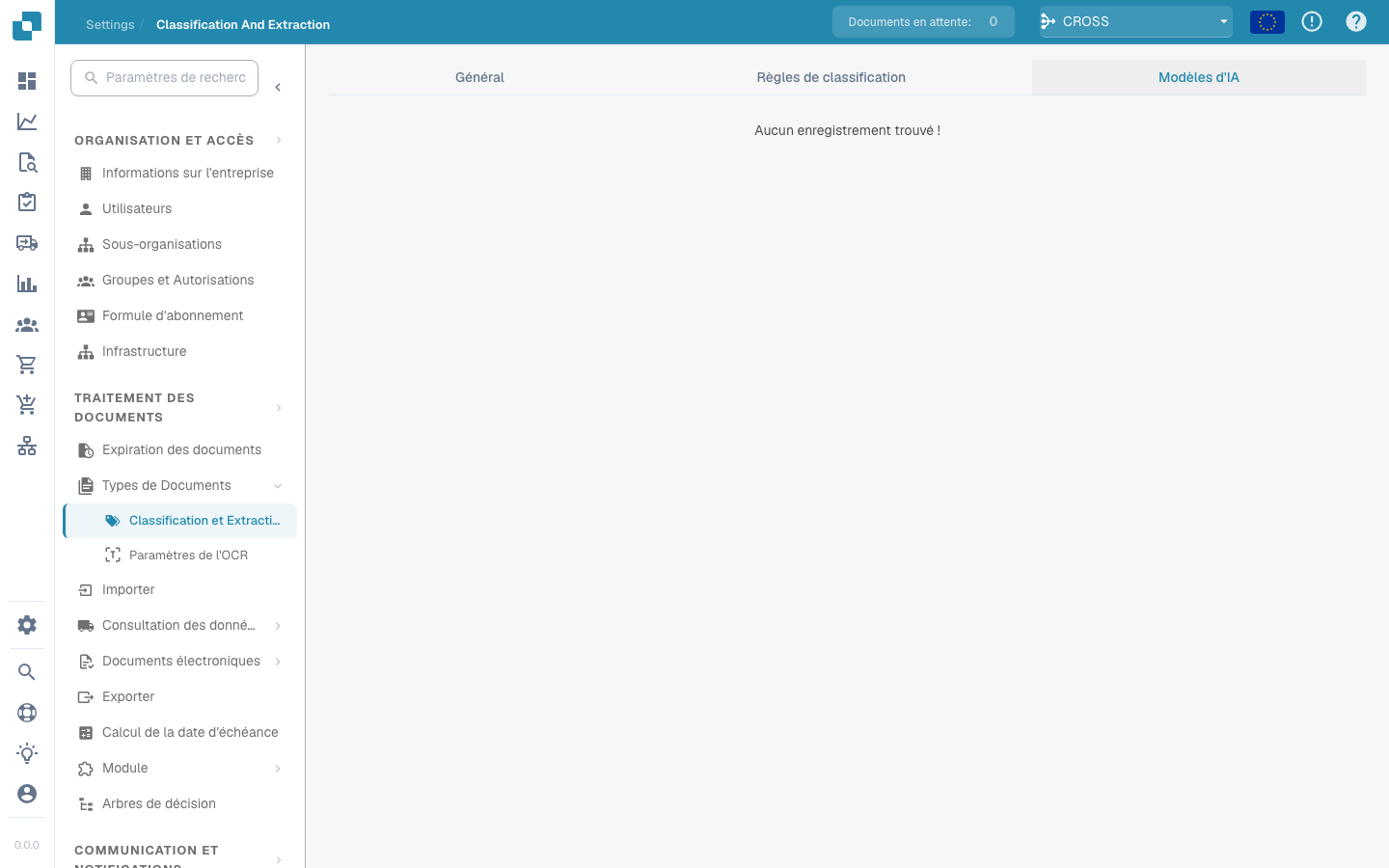
1. Go to **Settings → Document Processing → Classification and Extraction → Table Extraction**.
2. Enable **Costing Element Extraction**.
### **How to Set or Change the Classification**
1. Click on the **box icon** next to the item.\\
2. A **dropdown menu** with all configured costing elements will appear.\\
3. Select the correct **costing element type**.\\
4. The classification is now updated accordingly.